
Overview
Oracle OPERA Cloud automatically reverses an existing pre-authorisation when you replace a guest's payment card with a different one on their reservation. OPERA Cloud sends the reversal request to the payment service provider itself — you don't need to release the old authorisation separately. Use this procedure whenever a guest wants to change the card on their reservation and a pre-authorisation is already in place.
Applies to
| Product | Juno Hospitality Suite |
| Integration | Oracle OPERA Cloud (via OPI Cloud Service) |
| Version | Cloud |
| Audience | Front office / Reservations |
What you'll achieve
After completing these steps, the reservation will hold the new card, and the pre-authorisation on the old card will be released automatically, subject to processing by the relevant payment provider.
Before you start
- OPERA Cloud only sends the automatic reversal when both of these are true: a pre-authorisation already exists on the reservation, and the card is being replaced with a different one.
- If there's no existing pre-authorisation on the reservation, there's nothing for OPERA Cloud to reverse — this procedure is only relevant once one is already in place.
Operational steps
- From the OPERA Cloud menu, select Bookings, select Reservations, and then click Manage Reservation.
- Search for and open the reservation.
- Click I Want To… and select Payment Instructions.
- Click New/Edit Payment Instructions.
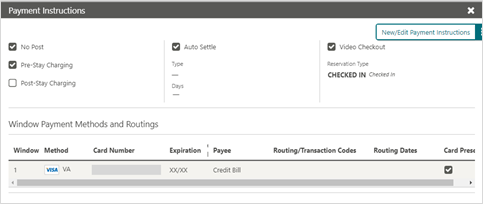
- Click the payment Method drop-down and select the payment type for the new card.
- Enter the Credit Card Number.
- Enter the Expiration date in MMYY format.
- Click Save.
Once saved, OPERA Cloud receives a new token for the card you entered, and automatically sends the authorisation reversal request for the previous card — you don't trigger this step yourself.
Expected result
The reservation now holds the new card, and the previous card's pre-authorisation is released, subject to processing by the relevant payment provider.
Need more help?
If the previous card's authorisation doesn't release after saving the new payment instructions, or Save fails, contact 934 Support (support@weare934.com) with the amount, last 4 digits from the credit card and the date and time. Do not send full card numbers or login credentials by email or chat.
Comments
0 comments
Article is closed for comments.