
Overview
Oracle OPERA Cloud lets front office staff refund funds back to a guest's card already on file, by posting a negative payment amount. A refund can be processed at any time and for a different amount than the original payment. Use this procedure when you need to credit money back to a card already used on the reservation.
Applies to
| Product | Juno Hospitality Suite |
| Integration | Oracle OPERA Cloud |
| Version | Cloud |
| Audience | Front office |
What you'll achieve
After completing these steps, the refund amount you enter will be credited back to the card on file, subject to processing by the relevant payment provider.
Before you start
- The refund feature must be activated by your payment provider.
- Your OPERA Cloud user account needs the relevant privilege to process negative payments.
- Have a reference detail ready — this is mandatory for refunds.
- If your property has Credit Card Rebate Validation active, OPERA Cloud will check that the refund amount doesn't exceed the amount originally charged.
Operational steps
- From the OPERA Cloud menu, select Front Desk, then In House.
- Search for and open the reservation.
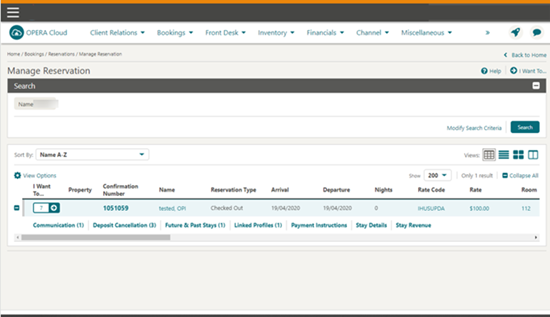
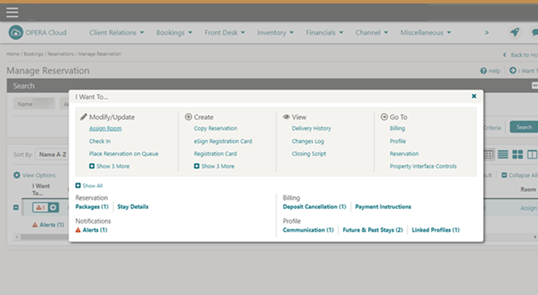
- Click I Want To… and select Billing.
If you're asked to log in as cashier
- Select your Cashier ID.
- Enter your PIN.
- Click Login.
- Select Post Payment.
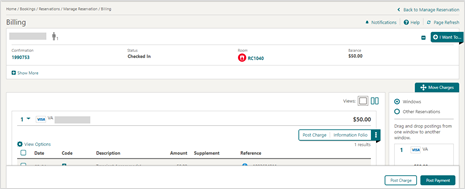
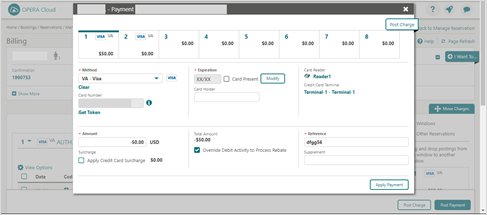
- Enter a negative amount in the Amount field.
- Provide the Reference details — this field is mandatory for refunds.
- Click Apply Payment.
Expected result
The payment is processed and applied to the reservation, crediting the refund amount back to the card on file.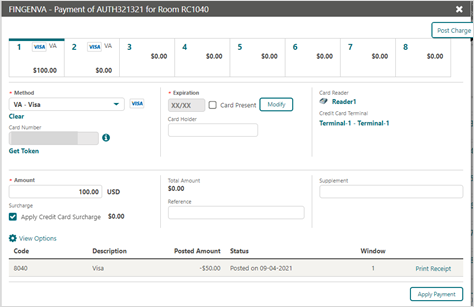
Need more help?
If Apply Payment fails, or the refund doesn't appear as expected, contact 934 Support (support@weare934.com) with the amount, last 4 digits from the credit card and the date and time. Do not send full card numbers or login credentials by email or chat.
Comments
0 comments
Article is closed for comments.