
Overview
Oracle OPERA Cloud lets front office staff process a payment for a guest who has already checked out — for example a no-show fee, a late charge, or a mini bar charge discovered after departure. This article covers posting the charge and taking payment using the guest's tokenised card on file, or a newly captured card at a connected terminal.
Applies to
| Product | Juno Hospitality Suite |
| Integration | Oracle OPERA Cloud (via OPI Cloud Service, Chip and PIN card terminal when a new card is used) |
| Version | Cloud |
| Audience | Front office / Back office |
What you'll achieve
After completing these steps, the delayed charge will be posted to the reservation and paid — either from the card already on file or a newly captured card — and the payment details will update automatically in OPERA Cloud.
Before you start
- This article covers payment using the tokenised card already on file, or a newly entered card at a terminal.
- Know whether your property has "Open folio" functionality active — this changes whether the reservation needs to be reinstated first.
- Typical delayed charges include a No Show Fee, a Late Charge, or a Mini Bar Charge.
Operational steps
- From the OPERA Cloud menu, select Front Desk, then Departures.
- Enter your search criteria, then click Search.
- Select the checked-out reservation in the results, click I Want To…, and select Go To > Billing.
Reinstate the reservation, if needed
- If your property doesn't have Open folio functionality active: click Reinstate Reservation, then click Reinstate to confirm.
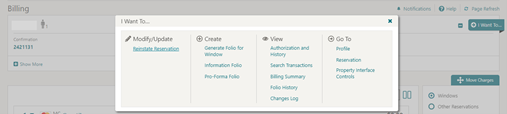
- If Open folio functionality is active: you don't need to reinstate the reservation — continue to the next section.
Post the charge and payment
- Select Post Charge if the charge doesn't already exist on the reservation (skip this if it's already there).
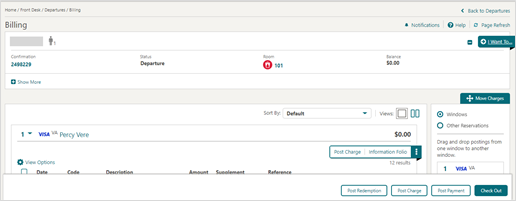
- Click Post Payment. The tokenised card on file appears automatically as the payment type, showing the final amount due.
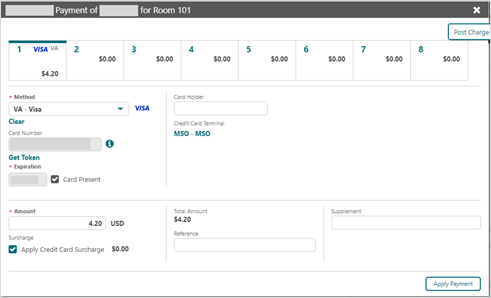
- If a new card is provided for the additional charges, enter the Card Number and Expiry date manually.
- Click Apply Payment to activate the payment device.
Activate the terminal, for a new card
If you're accessing the payment device for the first time after installation, a panel appears asking you to select a Payment Terminal (the terminal's pin pad mapping is completed beforehand by the OPI Installer).
- Select a terminal to activate for this transaction. Once selected, it's remembered for future use until the application or browser cache is cleared.
- The payment device alerts the guest to present their card. Once presented, and the transaction succeeds, a token, card type, expiration date and the last 4 digits of the card are returned to OPERA Cloud.
Expected result
The payment details update automatically in OPERA Cloud.
Need more help?
If you can't reinstate the reservation, Post Payment doesn't show the expected card on file, or the terminal doesn't activate, contact 934 Support (support@weare934.com) with the amount, last 4 digits from the credit card and the date and time. Do not send full card numbers or login credentials by email or chat.
Comments
0 comments
Article is closed for comments.