
Overview
Oracle OPERA Cloud lets front office staff take an in-house payment by having the guest present their card at a connected terminal, rather than charging a card already on file. Where possible, having the guest present their card is best practice. Use this procedure when the guest is already checked in and wants to pay towards their folio in person.
Applies to
| Product | Juno Hospitality Suite |
| Integration | Oracle OPERA Cloud (via OPI Cloud Service, Chip and PIN card terminal) |
| Version | Cloud |
| Audience | Front office |
What you'll achieve
After completing these steps, the amount you enter will be charged by having the guest present their card at the terminal, and the payment will be applied to the guest's folio, subject to processing by the relevant payment provider.
Before you start
- A Chip and PIN card terminal must be connected. The first time you use it — or after the application or browser cache is cleared — you'll need to select a Payment Terminal; this selection is then remembered for future use.
- Know which guest room the payment is for, and the amount to charge.
Operational steps
- From the OPERA Cloud menu, select Front Desk, then In House.
- Search for and open the reservation.
- Click I Want To… and select Billing.
- Select the guest room which requires the payment.
- Click Post Payment.
- Click the Payment Method drop-down and select CP-Chip and Pin or Pay Only.
- Enter the payment Amount to be charged and click Apply Payment.
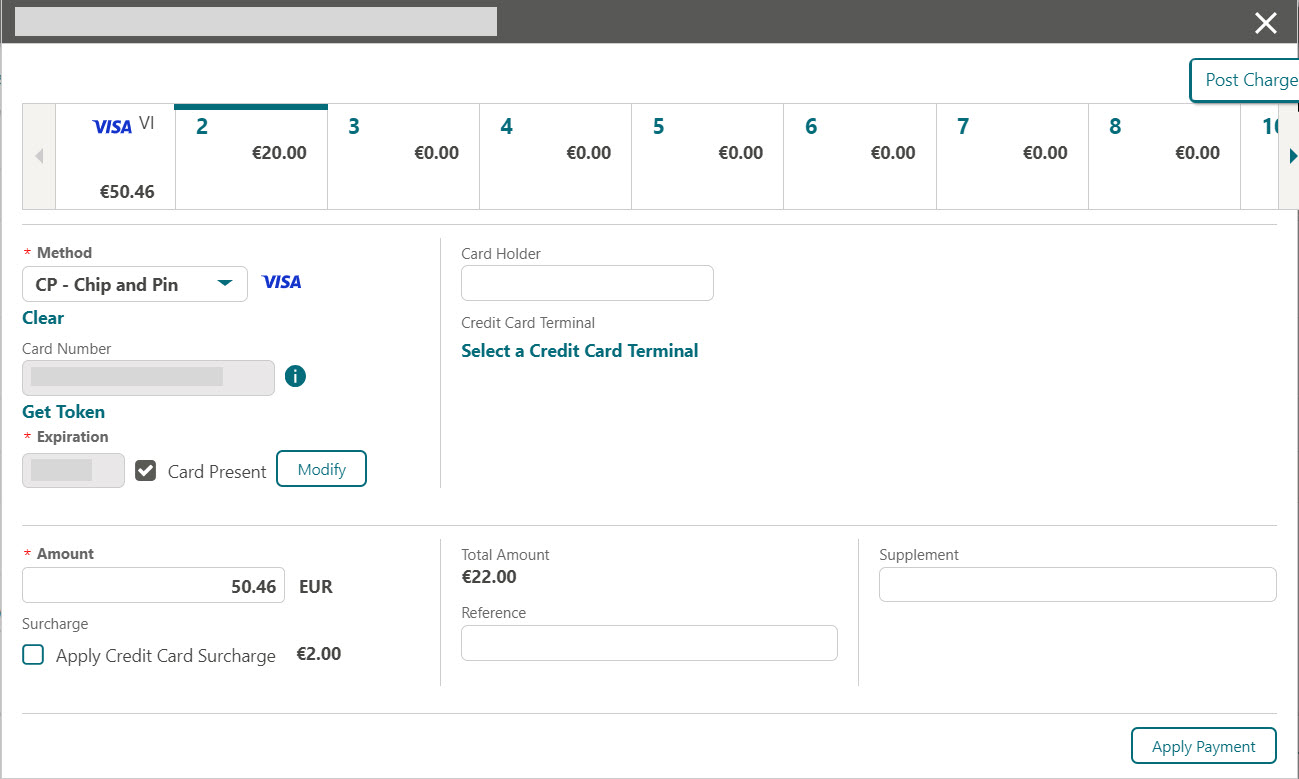
Activate the terminal
If you're accessing the payment terminal for the first time after installation, a panel appears asking you to select a Payment Terminal (the terminal's pin pad mapping is completed beforehand by the OPI Installer).
- Select a terminal to be activated for this transaction. Once selected, it's remembered for future use until the application or browser cache is cleared.
- The payment device alerts the guest to present their card.
- After the guest inserts or swipes their card, and the transaction succeeds, a token, card type, expiration date and the last 4 digits of the card are returned to OPERA Cloud.
Expected result
The payment applies to the guest's folio.
Need more help?
If the terminal doesn't activate, or the payment doesn't apply to the folio after a successful card presentation, contact 934 Support (support@weare934.com) with the amount, last 4 digits from the credit card and the date and time. Do not send full card numbers or login credentials by email or chat.
Comments
0 comments
Article is closed for comments.