
Overview
Oracle OPERA Cloud lets front office staff refund a guest to a new card that isn't already on the reservation, by applying a negative payment from the billing screen. Use this procedure when a guest wants their refund issued to a different card than the one originally used.
Applies to
| Product | Juno Hospitality Suite |
| Integration | Oracle OPERA Cloud |
| Version | Cloud |
| Audience | Front office |
What you'll achieve
After completing these steps, the refund amount you enter will be applied to the new card, subject to processing by the relevant payment provider.
Before you start
- If your property has Credit Card Rebate Validation active, you will not be able to refund to a new card that has no prior debit (charge) activity on it. If that applies here, use the existing card on file instead.
- Have a reference detail ready — this is mandatory for refunds.
- Your OPERA Cloud user account needs the relevant privilege to process negative payments.
Operational steps
- From the OPERA Cloud menu, select Front Desk, then In House.
- Search for and open the reservation.
- Click I Want To… and select Billing.
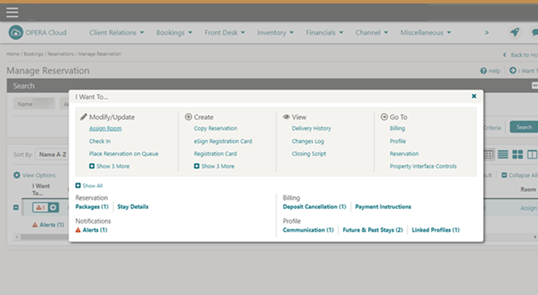
If you're asked to log in as cashier
- Select your Cashier ID.
- Enter your PIN.
- Click Login.
- Select Post Payment.
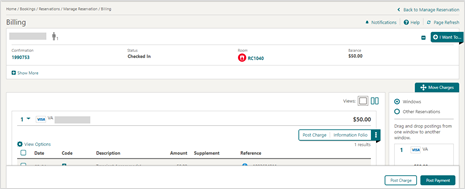
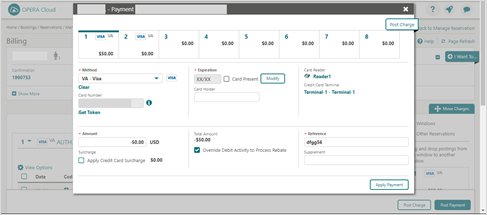
- Select the payment Method for the new card (for example Visa, Mastercard, or CP-Chip and Pin).
- Enter a negative amount in the Amount field.
- Provide the Reference details — this field is mandatory for refunds.
- Click Apply Payment. This initiates the device to enter the new card's data.
Expected result
The payment is processed and applied to the reservation as a refund to the new card.
Need more help?
If you can't process the refund because of Credit Card Rebate Validation, or Apply Payment fails, contact 934 Support (support@weare934.com) with the amount, last 4 digits from the credit card and the date and time. Do not send full card numbers or login credentials by email or chat.
Comments
0 comments
Article is closed for comments.