
Overview
Oracle OPERA Cloud lets front office staff complete a guest's check-in while capturing a payment authorisation directly from a connected Chip and PIN terminal, when the guest presents a card at arrival. This article covers checking in a guest whose room is already ready. If the room isn't ready yet, use Advance Check-In instead.
Applies to
| Product | Juno Hospitality Suite |
| Integration | Oracle OPERA Cloud (via OPI Cloud Service, Chip and PIN card terminal) |
| Version | Cloud |
| Audience | Front office |
What you'll achieve
After completing these steps, the guest's card will be authorised through the terminal, the authorisation will appear against the reservation, and the guest will be checked in.
Before you start
- This procedure covers check-in from Front Desk > Arrivals when a card is presented at arrival.
- A Chip and PIN card terminal must be connected. The first time you use it — or after the application or browser cache is cleared — you'll need to select a Payment Terminal; this selection is then remembered for future use.
- Know which room the guest is assigned to, and be ready to check the reservation's authorisation rule during the process.
Operational steps
- From the OPERA Cloud menu, select Front Desk, then Arrivals.
- Search for and open the reservation.
- Click I Want To… and select Check In.
Review guest and payment details
- On the Check In Reservation screen, review the guest's details.
- In the Room Selection panel, assign a room (if not already assigned).
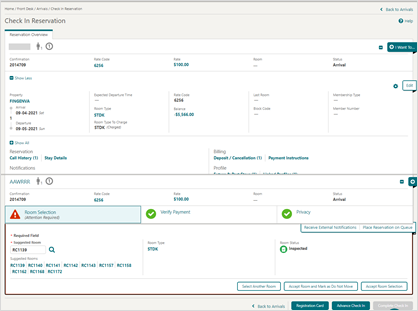
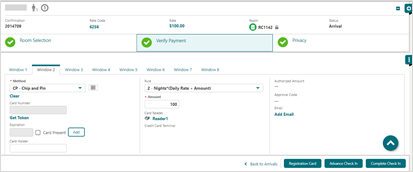
- Select the Verify Payment panel.
- Click the payment Method drop-down and select CP-Chip and Pin.
- Check the authorisation rule shown in the Rule field.
Capture the authorisation and complete check-in
- Click Complete Check In.
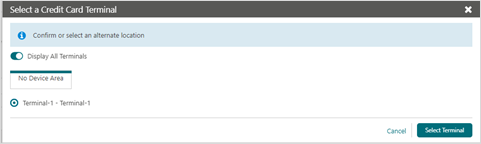
- Select a Payment Terminal, if prompted (only required the first time, or after the application or browser cache is cleared).
- Click Select Terminal.
- Ask the guest to insert or swipe their card at the terminal when prompted.
Expected result
The authorisation processes and appears in the Payment Authorisation window, and the guest is checked in. Click Go to Reservation to review the completed check-in details.
Need more help?
If the terminal doesn't activate, the authorisation fails, or the guest isn't checked in after a successful authorisation, contact 934 Support (support@weare934.com) with the amount, last 4 digits from the credit card and the date and time. Do not send full card numbers or login credentials by email or chat.
Comments
0 comments
Article is closed for comments.