
Overview
Oracle OPERA Cloud can flag a reservation as "Advance Checked In" when a guest arrives before their room is ready, so they can post charges to their folio while housekeeping finishes preparing the room. This article covers Advance Check-In when the guest presents a card at arrival, where OPERA Cloud captures a payment authorisation through a connected Chip and PIN terminal as part of the process.
Applies to
| Product | Juno Hospitality Suite |
| Integration | Oracle OPERA Cloud (via OPI Cloud Service, Chip and PIN card terminal) |
| Version | Cloud |
| Audience | Front office |
What you'll achieve
After completing these steps, the reservation will be flagged as Advance Checked In, the guest's card will be authorised through the terminal (a hold, not a charge), and the reservation will automatically complete check-in once a room is ready.
Before you start
- This procedure covers Advance Check-In specifically when the guest presents a card at arrival for a Chip and PIN authorisation.
- Applies to individual reservations (Walk In, Pre-Registered, Queue) and group block reservations.
- A Chip and PIN card terminal must be connected. On first use, a Payment Terminal selection panel appears — see the related article on card-present terminal setup for background on this.
- Know which room you're assigning, and be ready to check the reservation's authorisation rule during the process.
Operational steps
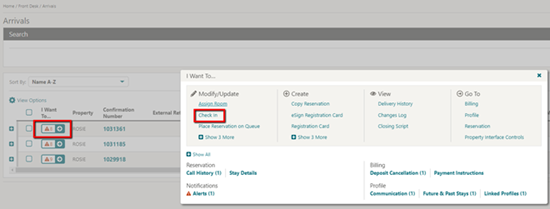
- From the OPERA Cloud menu, select Front Desk, then Arrivals.
- Search for and open the reservation.
- Click I Want To… and select Check In.
Review guest and payment details
- On the Check In Reservation screen, review the guest's details.
- In the Room Selection panel, assign a room.
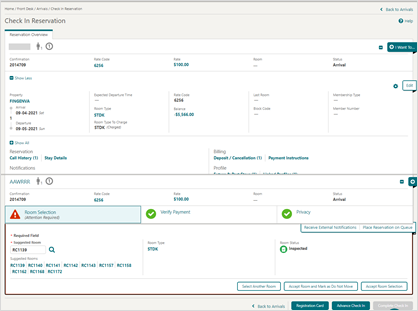
- Select the Verify Payment panel.
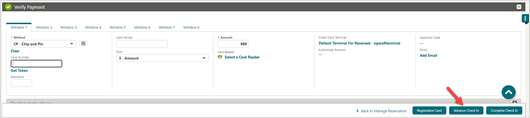
- Click the payment Method drop-down and select CP-Chip and Pin.
- Check the authorisation rule shown in the Rule field.
Capture the authorisation
- Click Advance Check In.
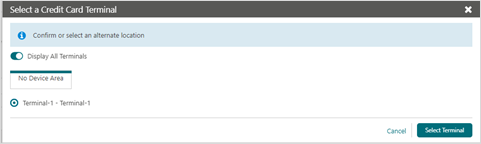
- Select a terminal to be activated. On first use, a Payment Terminal selection panel appears.
- Click Select Terminal.
- Ask the guest to insert or swipe their card at the terminal when prompted. A token and authorisation request is initiated automatically once the card is presented.
Expected result
On a successful authorisation, the token, card type, expiration date and last 4 digits of the card are returned, and the guest is Advance Checked In. The authorisation appears in the Payment Authorisation window, and the reservation automatically completes check-in once a room is ready.
Need more help?
If the terminal doesn't activate, the authorisation fails, or the guest isn't marked as Advance Checked In after a successful authorisation, contact 934 Support (support@weare934.com) with the amount, last 4 digits from the credit card and the date and time. Do not send full card numbers or login credentials by email or chat.
Comments
0 comments
Article is closed for comments.