
Overview
Oracle OPERA Cloud lets front office staff create a deposit request against a reservation, specifying an amount and a due date, from the reservation's Deposit / Cancellation panel. Use this procedure when you need to record or schedule a deposit for a booking.
Applies to
| Product | Juno Hospitality Suite |
| Integration | Oracle OPERA Cloud |
| Version | Cloud |
| Audience | Front office |
What you'll achieve
After completing these steps, a deposit request for the amount and due date you enter will be saved against the reservation.
Before you start
- Have the reservation you want to add a deposit to ready to search for.
- Know the deposit amount and the due date you need to record.
Operational steps
- From the OPERA Cloud menu, select Bookings, then Reservations, then click Manage Reservation.
- Search for and open the reservation.
- Click I Want To… and select Deposit / Cancellation.
- In the Deposit panel, click New to create a new deposit.
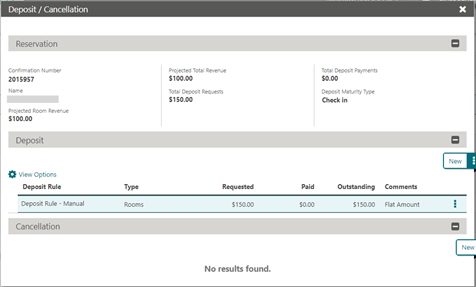
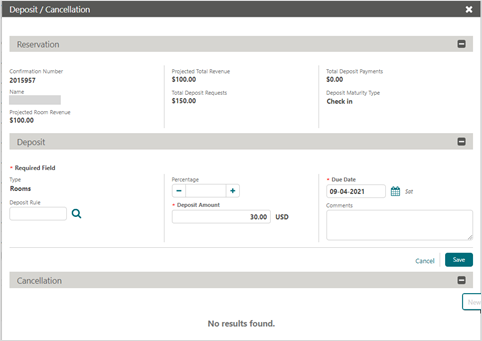
- Enter the Deposit Amount.
- Enter the Due Date.
Click Save.
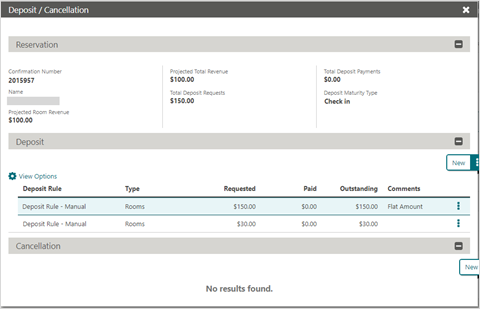
Expected resultThe deposit is saved and appears against the guest's reservation, showing the recorded amount and due date.
Need more help?If the deposit doesn't save, or doesn't appear as expected, contact 934 Support (support@weare934.com) with the amount, last 4 digits from the credit card and the date and time. Do not send full card numbers or login credentials by email or chat.
Comments
0 comments
Article is closed for comments.