
Overview
Oracle OPERA Cloud lets front office and cashier staff post a payment directly against a reservation from the reservation's billing screen. Use this procedure whenever you need to apply a payment — for example at check-out, or when a guest wants to settle part of their balance during their stay. Once applied, the payment is recorded against the reservation and reflected in its billing status.
Applies to
| Product | Juno Hospitality Suite |
| Integration | Oracle OPERA Cloud |
| Version | Cloud |
| Audience | Front office / Cashier |
What you'll achieve
After completing these steps, the payment amount you enter will be posted against the reservation and applied to its balance, subject to processing by the relevant payment provider.
Before you start
- Have the reservation you want to post the payment against ready to search for.
- Depending on your OPERA Cloud configuration, you may be asked to log in with a Cashier ID and PIN before you can post the payment.
Operational steps
- From the OPERA Cloud menu, select Bookings, then Reservations, then click Manage Reservation.
- Search for and open the reservation.
- Click I Want To… and select Billing.
If you're asked to log in as cashier
- Select your Cashier ID.
- Enter your PIN.
- Click Login.
Post the payment
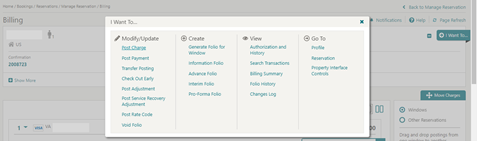
- Click I Want To… and select Post Payment.
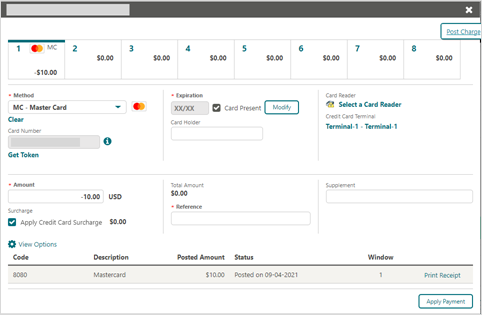
- Enter the payment Amount.
- Click Apply Payment.
Expected result
The payment is processed and appears against the reservation, showing the posted amount and its status on the payment screen.
Need more help?
If the payment doesn't post as expected, contact 934 Support (support@weare934.com) with the reservation number, last 4 digits from the credit card and the date and time you attempted to post the payment. Do not send full card numbers, Cashier PINs, or other login credentials by email or chat.
Comments
0 comments
Article is closed for comments.